How to Set Up a WhatsApp Chatbot for Your Business in 2026 (Step-by-Step)
-
26 May 2026
-
6986 Views
How to Set Up a WhatsApp Chatbot for Your Business in 2026 (Step-by-Step)
What You're Actually Setting Up
Before the steps, one thing worth clarifying: a WhatsApp chatbot is not a simple autoresponder or a menu of numbered options. Done properly, it's an AI agent connected to your WhatsApp Business API number that understands natural language, answers from a knowledge base you've built, takes actions via integrations, and hands off to a human when the conversation requires it.
Setting this up in 2026 doesn't require developers or a technical team. It requires a structured approach and about half a day of focused work for the initial setup. The result is a system that handles a meaningful portion of your incoming WhatsApp messages automatically — 24 hours a day, including while you sleep.
This guide walks through every step, from understanding what you need before you start, to having a tested, live bot on your WhatsApp number.
What You Need Before You Start
A Meta Business Account
Your WhatsApp Business API connection runs through Meta's business infrastructure. If you don't have a Meta Business Account, you'll need to create one at business.facebook.com. This is free and takes about 10 minutes. You'll need a Facebook account to create one.
A Phone Number for WhatsApp API
You need a phone number to connect to the API. A few things to know:
- The number cannot currently be active on the personal WhatsApp app or the WhatsApp Business App. If you want to use an existing number, you'll need to migrate it (which means deleting it from the existing app first).
- The number can be a mobile number, a landline, or a VoIP number — as long as it can receive an SMS or voice call for verification.
- Many businesses use a separate number for their WhatsApp chatbot (e.g., a dedicated business SIM or a virtual number from a VoIP provider), keeping their personal or existing business number separate.
A Platform or BSP
You access the WhatsApp Business API through a platform or Business Solution Provider (BSP). This is the software layer that manages your connection, your conversations, your bot's knowledge base, and the interface your team uses.
Ainisa is an official Meta Technology Partner, which means the API connection and onboarding are built directly into the platform — no separate navigation of Meta's developer console required.
Your Business Content
Before you configure anything, gather the information the bot will need to answer questions:
- Your full product or service list with descriptions and prices
- FAQs — the questions customers actually ask, not the ones you think they ask
- Operating hours, location(s), contact details
- Policies (shipping, returns, cancellation, payment, etc.)
- Any process-specific information (how to order, how to book, what to bring to an appointment)
The quality of your bot is directly proportional to the quality and completeness of this content. Spend time on it.
Step 1: Connect Your WhatsApp Number to the API
Through Ainisa
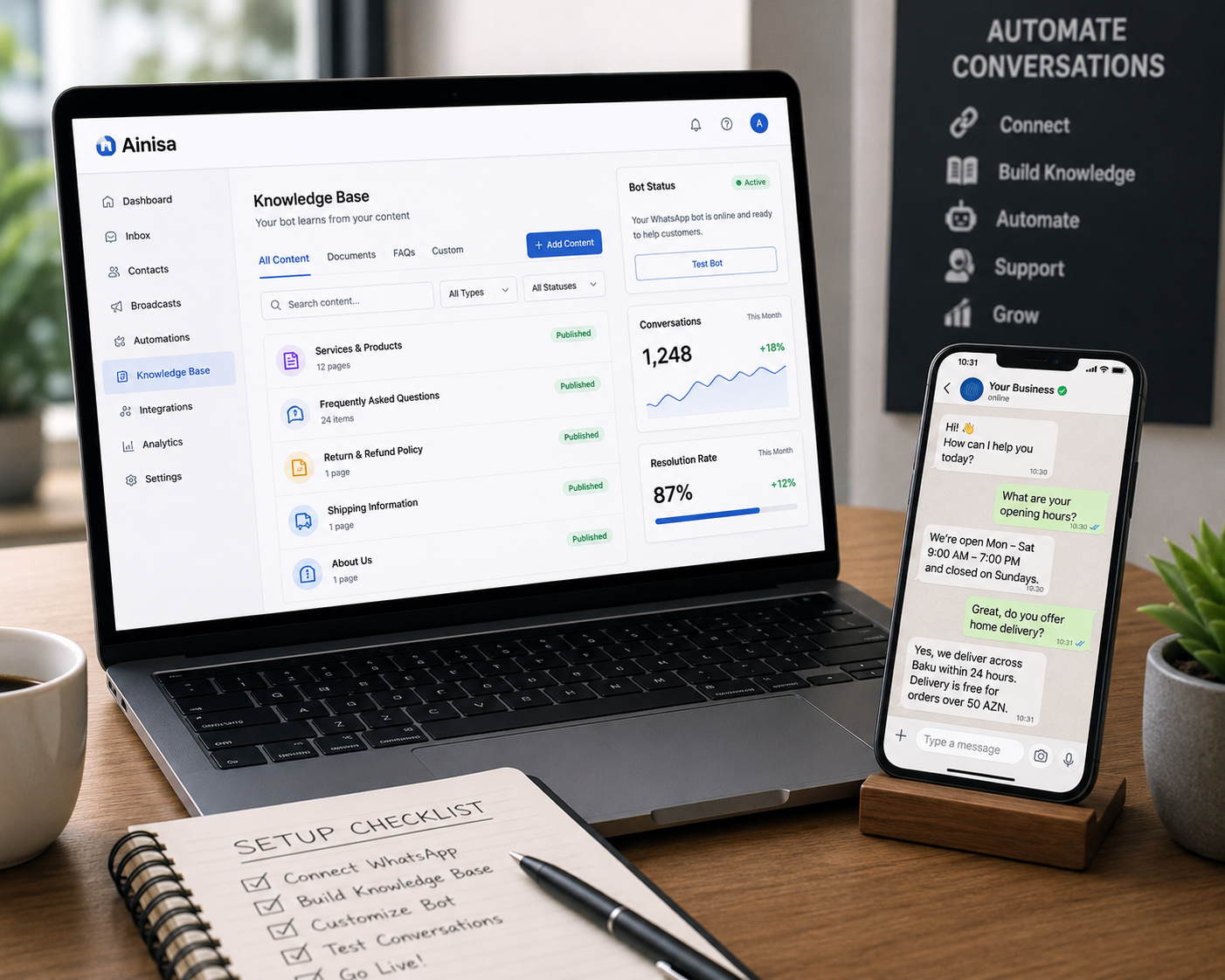
Log in to your Ainisa account and navigate to the WhatsApp integration section. Ainisa's embedded onboarding guides you through the Meta Business Account verification and number connection in a single flow. You'll:
- Connect or create your Meta Business Account
- Verify your business with Meta (requires basic business details — name, website, country)
- Add your phone number and verify it via SMS or voice call
- Complete the number registration
This process typically takes 15–30 minutes if your documentation is ready. Business verification can occasionally take longer if Meta requests additional review, but for most businesses it clears within a few hours.
Once connected, your WhatsApp number is live on the API. Any message sent to it now reaches your Ainisa inbox rather than a phone app.
Step 2: Build Your Knowledge Base
This is the most important step and the one that most directly determines how well your bot performs.
What goes in the knowledge base
The knowledge base is the information your bot draws on when answering customer questions. It's not a list of hardcoded question-answer pairs — it's a set of documents, pages, and structured content that the bot's AI searches semantically to find relevant answers.
For most businesses, the knowledge base should include:
Products or services: For each offering, include the full name, a clear description, what's included, the price, and any variations or options. Be specific. "Laser hair removal" is not enough. "Laser hair removal — full legs — 6 sessions — 450 USD — suitable for all skin types — requires patch test on first appointment" is useful.
FAQs: Go through your last month of customer messages and list the questions that actually came in. Not what you think customers ask — what they actually asked. Add each one with a clear, complete answer.
Policies: Return policy, cancellation policy, payment methods, shipping zones and timeframes, warranty terms. Write these out completely.
Operational information: Opening hours (including holidays), physical address and directions, parking, delivery areas if applicable.
Team or specialist information: If customers frequently ask about specific people (doctors, consultants, stylists, etc.), include their name, role, specialties, and typical availability.
How to add content in Ainisa
Ainisa supports two ways to build the knowledge base:
- Direct text input: Type or paste content directly into the knowledge base editor — the fastest way to add FAQs, policies, and any structured information
- Document upload: Upload PDFs, Word documents, or text files — the system extracts and indexes the content
Most businesses start by pasting their core content directly, then supplement with uploaded documents for longer policy files or product catalogues.
What makes a good knowledge base
The most common mistake is being too brief. "We offer haircuts, colours, and treatments" is not useful. "We offer haircuts for all hair types starting from 35 USD, balayage and highlights from 80 USD, deep conditioning treatments from 25 USD, and Brazilian blowouts from 120 USD. All appointments include a complimentary consultation" — that's something the bot can work with.
Write everything as if you're writing it for a new employee who knows nothing about your business and needs to be able to answer any customer question on their first day.
Step 3: Configure Your AI Agent
With the knowledge base built, you now configure the AI agent itself — its behaviour, tone, and operational rules.
System prompt
The system prompt is a set of instructions the AI reads at the start of every conversation. It defines:
- Who the bot is ("You are the virtual assistant for [Business Name]")
- What tone to use (professional, friendly, formal, casual)
- What to do and what not to do ("Never provide medical advice — if a customer describes symptoms, acknowledge their message and immediately transfer to a human")
- How to handle specific situations ("If a customer asks for a discount, offer 10%")
- When to escalate ("Transfer to a human agent if the customer asks to speak with a person, expresses frustration, or asks something outside your knowledge")
The system prompt is where your business logic lives. Spend time on it. A well-written system prompt makes the difference between a bot that feels like a natural extension of your business and one that feels generic.
Language settings
Configure the language(s) the bot should respond in. Ainisa supports multilingual operation — the bot can detect the language the customer is writing in and respond accordingly, or you can set it to respond in a specific language.
Human handoff configuration
Define clearly what triggers a transfer to a human agent. At minimum:
- Customer explicitly asks to speak with a person
- Customer expresses frustration or repeats the same question multiple times
- The question falls outside what the knowledge base covers
- Any input suggesting an urgent or sensitive situation
When a transfer triggers, the full conversation history transfers to your team inbox so the human agent has complete context from the first message.
Step 4: Set Up Actions (Optional but Powerful)
Ainisa provides two distinct types of actions that extend what your bot can do beyond answering questions.
API Actions — for retrieving live product and service data
API Actions connect your bot to external systems to pull real-time information during a conversation. The primary use case is product and service data: prices, availability, specifications, variants, and any information that lives in your backend system rather than your knowledge base.
For example, a customer asks "What's the current price for the premium plan?" or "Is the red variant of this product in stock?" — the bot queries your API and returns the accurate, live answer rather than relying on potentially outdated knowledge base content.
Setting up API Actions requires the API endpoint and authentication details for your external system. For standard platforms (Shopify, WooCommerce, custom backends), your developer can provide these in a few minutes.
Lead Generation Action — for capturing contact details
The Lead Generation Action is a separate, simpler tool designed specifically for lead capture. It doesn't require an external API. The bot collects structured information from the customer — name, phone number, email, specific request, preferred time — and automatically sends it to a Telegram group your team monitors, or appends it to a Google Sheet.
This is the right choice when you want to capture enquiries, appointment requests, or sales leads without building an API integration. The team receives the data immediately and follows up manually. No enquiry is lost.
Step 5: Test Before You Go Live
Testing is not optional. A bot that gives wrong information, fails to escalate appropriately, or mishandles common scenarios will damage customer trust.
How to test
Send your WhatsApp number messages that cover:
Common scenarios: Your most frequently asked questions, a typical purchase or booking flow, a policy question, a request for directions.
Edge cases: Requests the bot doesn't know the answer to. What happens when you ask something outside the knowledge base? Does it say "I don't know" gracefully, or does it make something up?
Escalation triggers: Ask to speak to a person. Describe a problem or complaint. Check that the transfer happens cleanly and the conversation history is preserved.
Language variations: Ask the same question in different ways. Customers don't speak in FAQs — they ask in their own words. "Do you guys do same day delivery?" and "Can I get it today?" are the same question phrased differently. Both should get the right answer.
Fix gaps before launch
Every gap you find in testing is a gap your customers would have found after launch. Add missing information to the knowledge base. Refine system prompt instructions for edge cases that didn't behave correctly.
Step 6: Deploy and Monitor
Go live
Once testing is complete, your bot is already live — any message to your WhatsApp number gets handled by the bot. Announce it to your customers if relevant, update your contact information across your website and social profiles to include the WhatsApp number.
Monitor the first 30 days closely
The first month is when you'll discover most of the real-world gaps the testing didn't catch. Customers ask things in ways you didn't anticipate. Review conversations that were escalated to a human — these often reveal knowledge base gaps. Review conversations where the bot gave a "I don't know" response — these are direct signals to add content.
In Ainisa, you can review all conversations from the shared inbox. Make it a weekly habit for the first month to review a sample of bot conversations and update the knowledge base based on what you find.
What to measure
Track these metrics in the first 30 days:
- Deflection rate: Percentage of conversations the bot resolved without human handoff. A well-configured bot should reach 60–70% deflection within the first month.
- Escalation rate: Conversations transferred to a human. These should reduce over time as knowledge base gaps are filled.
- Response time: How quickly customers are getting responses. Should be near-instant for all bot-handled conversations.
- No-show rate (if applicable): If you set up appointment reminders, track whether no-show rates change.
Common Mistakes to Avoid
Launching with an incomplete knowledge base. A bot that says "I don't know" frequently is worse than no bot. Better to delay launch by a day and add the missing content.
Writing the system prompt as an afterthought. The system prompt is where your bot's personality and business logic live. A generic, one-paragraph prompt will produce a generic bot. Take an hour to write it properly.
Not configuring escalation. Businesses sometimes focus so much on what the bot handles that they neglect what it should hand off. Every bot needs clear escalation rules — especially for complaints, edge cases, and anything requiring human judgment.
Treating launch as the finish line. A bot improves with iteration. The knowledge base should grow as real customer questions reveal gaps. Businesses that treat their bot as a set-and-forget tool see stagnant performance; those that update it weekly see continuously improving deflection rates.
Using one number for both the bot and human conversations. Some businesses try to use the same WhatsApp number for the bot and for staff to manually message customers. This creates confusion. Establish clear routing: the bot handles inbound, and human outbound conversations have a clear process.
How Long Does This Take?
For a straightforward setup with a solid knowledge base and basic configuration:
- Meta Business Account and number setup: 30–60 minutes
- Knowledge base building: 2–4 hours (this is the longest step and scales with your content volume)
- System prompt and agent configuration: 30–60 minutes
- Actions setup (if applicable): 30–90 minutes depending on type (Lead Generation Action is faster; API Actions require endpoint details)
- Testing and refinement: 1–2 hours
Total: roughly half a day for the initial setup. The bot is then live and improving continuously from there.
How Ainisa Fits Into This Process
Ainisa is built so that every step in this guide is handled within a single platform — the Meta onboarding, the knowledge base editor, the AI agent configuration, Lead Generation Actions and API Actions, the shared team inbox, and the conversation analytics.
The official Meta Technology Partner status means WhatsApp onboarding is embedded — you don't navigate developer consoles or BSP dashboards separately. The hybrid RAG system means your knowledge base gives accurate, contextual answers rather than keyword matches. The BYOK model means you pay OpenAI or Anthropic directly for AI costs at their published rates — not an inflated markup. For more on how that pricing works, see What Is BYOK and Why It Matters for AI Chatbot Costs.
The same agent and knowledge base deploy simultaneously across WhatsApp, Instagram, Facebook Messenger, Telegram, TikTok, and your website — so you build once and operate everywhere. For a comparison of platforms you can use for this kind of setup, see 10 Best WhatsApp Chatbots for Business in 2026.
If you're still deciding whether to use the API or the free WhatsApp Business App, see WhatsApp Business API vs Regular WhatsApp: What Every Business Needs to Know.
What Comes After Setup
A live WhatsApp chatbot is not a finished project — it's a system that gets better the more you use it and maintain it.
In the first month: focus on filling knowledge base gaps and refining escalation rules based on real conversations.
In months two and three: add Actions if you haven't already. For most businesses, the Lead Generation Action delivers immediate value with zero integration effort — capturing enquiries into Telegram or Google Sheets. API Actions are the next step for pulling live product data and prices into conversations.
After month three: your deflection rate should be stable and high. The bot is now a reliable first line of customer communication. The next conversation to have is about broadcast campaigns — using your opted-in WhatsApp contact list for promotions, re-engagement, and post-purchase follow-ups.
The setup is the beginning. The value compounds from there.
➤ Try Ainisa Free — No Credit Card Required ➤ Read the Ainisa Documentation ➤ See Ainisa Pricing